

Introduction
The Image API allows for real-time image manipulation, using query string parameters appended to image URLs.
Crop
Crop the image. There are eight different crop modes. See below for details on each.
Blur
Apply a blur effect to an image (0 to 100).
GET /image.jpg?blur=90
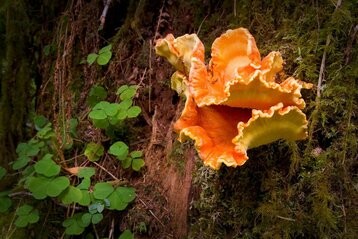
Original
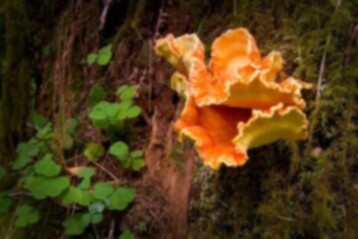
blur=10
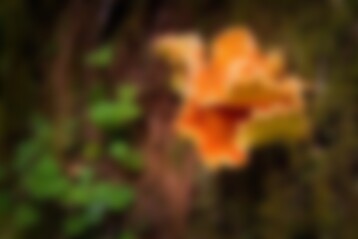
blur=50
Brightness
Adjusts the overall brightness of the image. Valid values are in the range -100 – 100. The default value is 0, which leaves the image unchanged.
GET /image.jpg?brightness=-10
GET /image.jpg?brightness=25
Original
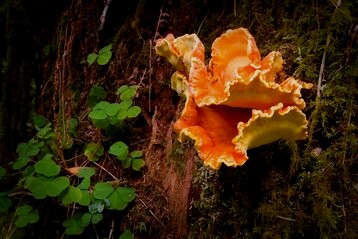
brightness=-10
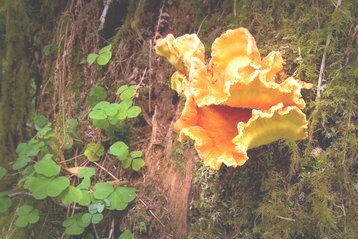
brightness=25
Contrast
Adjusts the contrast of the image. Valid values are in the range -100 – 100. The default value is 0, which leaves the image unchanged.
GET /image.jpg?contrast=-10
GET /image.jpg?contrast=25
Original
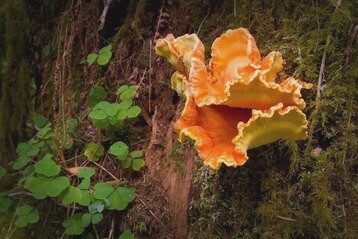
contrast=-10
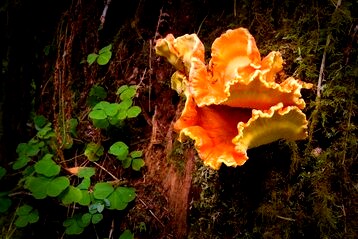
contrast=20
Crop
Crop the image. There are eight different crop modes. See below for details on each.
Fit
Crop any excess image data outside the given width and height dimensions, after scaling has been completed. The crop will be centered on the image. The output image will match the dimensions precisely as given.
GET /image.jpg?width=200&height=200&crop=fit
Original

width=200&height=200&crop=fit
Top
GET /image.jpg?width=300&height=100&crop=top
Original

width=300&height=100&crop=top
Bottom
GET /image.jpg?width=300&height=100&crop=bottom
Original

width=300&height=100&crop=bottom
Pad
Scale an image to the given dimensions and fill the extra space with the given pad_color. The default pad_color is white.
GET /image.jpg?width=200&height=100&crop=pad
Original

width=200&height=100&crop=pad

width=200&height=200&crop=pad
Stretch
Stretch an to the given width and height losing its aspect ratio.
GET /image.jpg?width=300&height=300&crop=stretch
Original

width=200&height=200&crop=stretch
custom
Return a region of the image. The region is specified by four numbers representing x-offset, y-offset, width, and height separated by commas.
GET /image.jpg?crop=150,20,160,180
GET /image.jpg?crop=left,bottom,160,160
| Parameter | Value Type |
|---|---|
| x-offset | int, string("left", "right", "center") |
| y-offset | int, string("top", "bottom", "center") |
| width | int |
| height | int |
Original
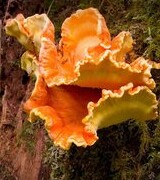
crop=150,20,160,180
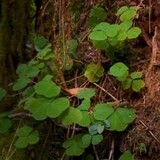
crop=left,bottom,160,160
Quality
Set the image quality. A lower setting will reduce the file size. Possible value ranges from 1 to 100. The quality of the initial image will be applied if the quality parameter is not explicitly set. If the initial image quality cannot be detected, a quality of 90 will be applied.
GET /image.jpg?quality=80
GET /image.jpg?quality=30
Original
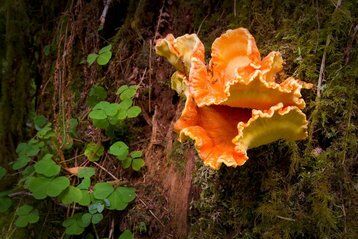
quality=80
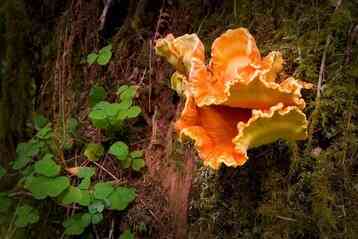
quality=30
Hue
Changes the hue, or tint, of each pixel in the image. Value ranges from -100 to 100.
GET /image.jpg?hue=80
GET /image.jpg?hue=-30
Original
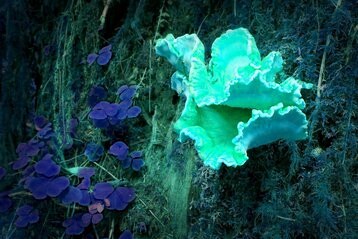
hue=80
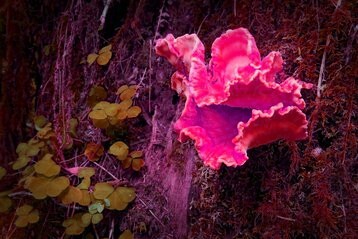
hue=-30
Rotate
Rotate the image counterclockwise N degrees.
GET /image.jpg?rotate=90
GET /image.jpg?rotate=-160&bgcolor=cyan
Original
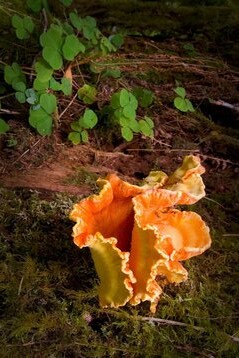
rotate=90
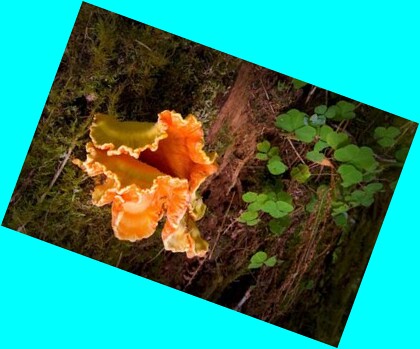
rotate=-160&bgcolor=cyan
Saturation
Adjusts the saturation of the image. Value ranges from -100 to 100.
GET /image.jpg?saturation=80
GET /image.jpg?saturation=-50
Original
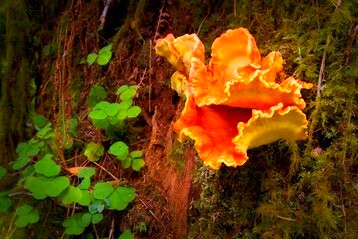
saturation=80
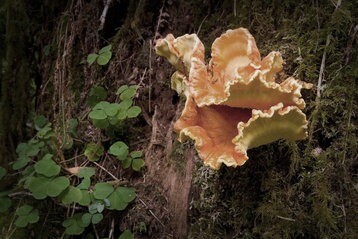
saturation=-50